Guide to setting up Microsoft OneDrive on macOS
Install and set up
If you have signed into the OneDrive client with a Microsoft account (for example, someone@outlook.com), you should already have the new OneDrive for Business sync client and you can skip to step 2 below.
Note: If you’re not familiar or comfortable with using Terminal windows or other procedures mentioned in this article, we recommend that you wait until a later release to start using the new OneDrive for Business sync client, or talk to your Office 365 administrator.
- Install OneDrive from the Mac app store.
- Start the Welcome to OneDrive wizard.
Method 1: If you have no accounts signed in to OneDrive
If you’re not signed in to OneDrive with any account, you’ll want to set up OneDrive so that you can connect a work or school account.
- From a Terminal window, type the following and tap Return:defaults write com.microsoft.OneDrive-mac DefaultToBusinessFRE -bool True
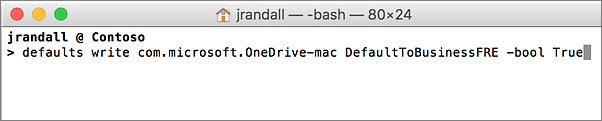
- From a Terminal window, type the following and tap Return:defaults write com.microsoft.OneDrive-mac EnableAddAccounts -bool True

- Start OneDrive by hitting cmd+Space to launch a Spotlight query and type “OneDrive”.
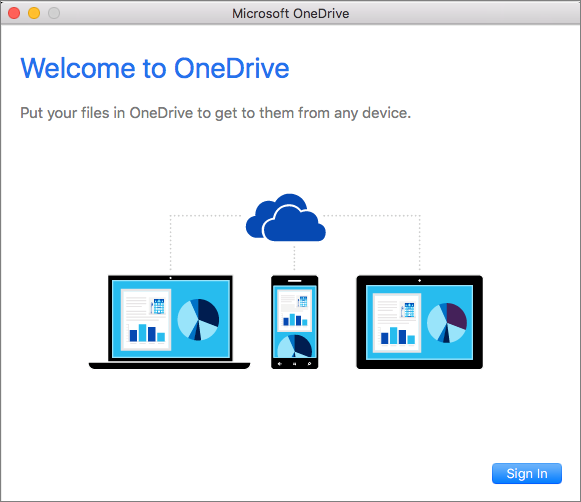
This starts the Welcome to OneDrive wizard where you can click Sign in to set up your work or school account.
Method 2: If you already have a personal account signed in to OneDrive
If you already have a personal account signed in to OneDrive, you’ll want to configure OneDrive to add a work or school account directly from Preferences.
- Click the OneDrive cloud icon up in your Menu bar and select Quit OneDrive.
- From a Terminal window, type the following and tap Return:defaults write com.microsoft.OneDrive-mac EnableAddAccounts -bool True
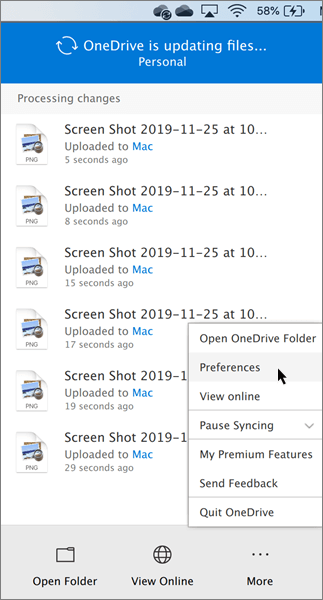
- Click the OneDrive cloud icon up in your Menu bar and select Preferences .
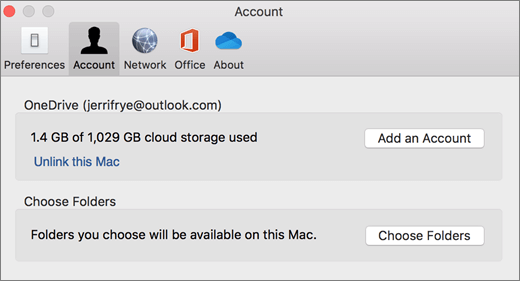
- Click the Account tab and in the new Add Account group, select Add a Business Account to start the Welcome to OneDrive wizard.
- Sign in with your work or school account.
Key parts of the Welcome to OneDrive wizard
There are a few points of the Welcome to OneDrive wizard that are helpful to watch for:
- On the This is your OneDrive folder screen, click Choose OneDrive Folder Location.
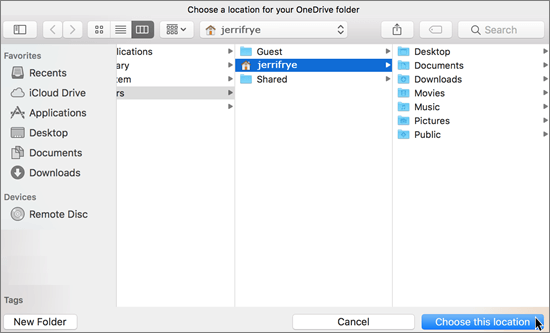
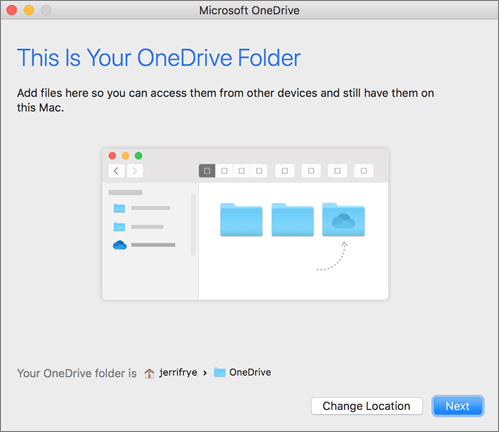 Select a location where you would like to save your OneDrive files and click Choose this location.
 When you see the This is your OneDrive folder screen, you’ll now see a path to the folder you selected. Click Next to continue.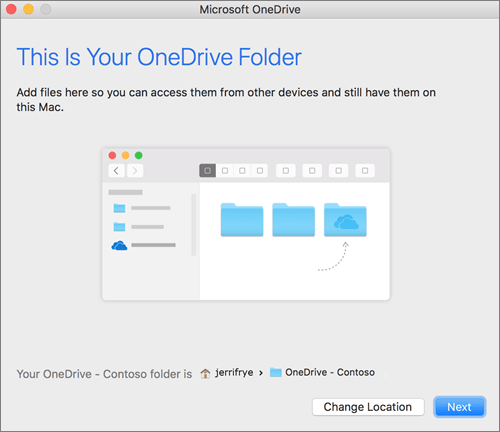
- On the Sync Files from Your OneDrive screen, you can choose the folders you want to sync to your computer, and click Next. This conserves space on your computer, and reduces bandwidth needed for the sync processes.
- When you see Your OneDrive Is Ready for You, the last thing to do is make sure you select Open at login so my files sync automatically. This will ensure that OneDrive runs at login and you always have the most up to date version of all your files.
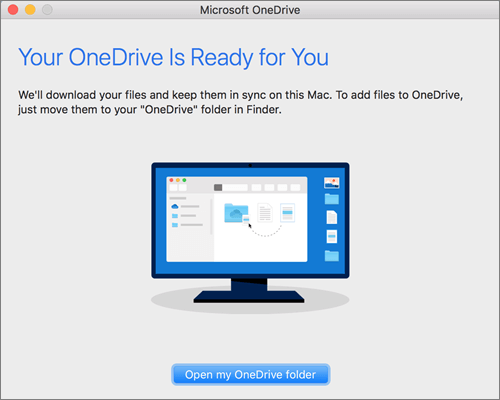 After you enable OneDrive to open at login, you’re done! Click Open your OneDrive folder to see your files sync to your folder.
You can find OneDrive up in your Menu bar. You’ll have a cloud icon for every account you’ve connected to OneDrive. So you’ll have one cloud if you’re only syncing a work or school account, one cloud if you’re syncing only a personal account, or two clouds if you’re syncing both.
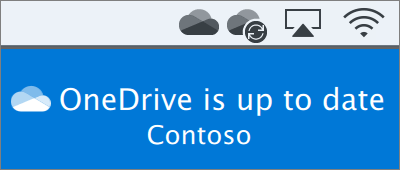
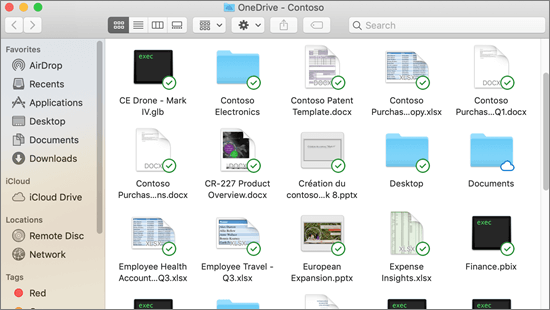
You’ll also see a folder in Finder called OneDrive – YourTenantName.
Turn on Finder integration
If you’re on OSX 10.10 or higher, get sync status directly from Finder by enabling Finder overlays in Settings.
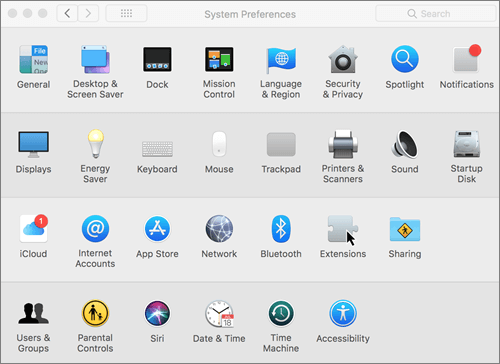
First, click the Apple logo in the top left corner of your Mac Desktop and select System Preferences, then select Extensions in the top-level menu (shown in the 3rd row from the top).
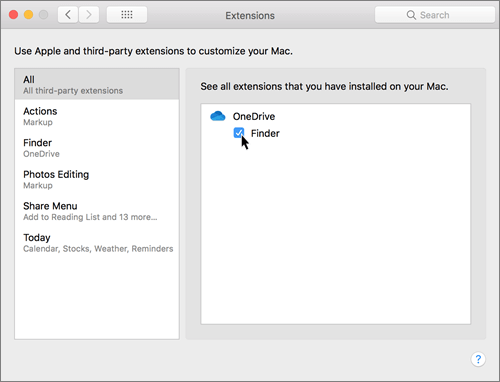
Toggle on the OneDrive Finder Integration to enable Finder overlays.
You’re all set. Open up your OneDrive folder in Finder to see overlays on your files and folders.